You can manage enterprise tags by using these options:
- View mind maps: Visualize tag relationships and associations
- Edit enterprise tags: Modify tag properties and settings
- Delete enterprise tags: Remove tags no longer needed
- View history: Track changes and audit history
From the tags listing section, use the following options in the Options column to manage tags:
- View Mind Map

- Use this option to view a visual representation of tag relationships and associations.
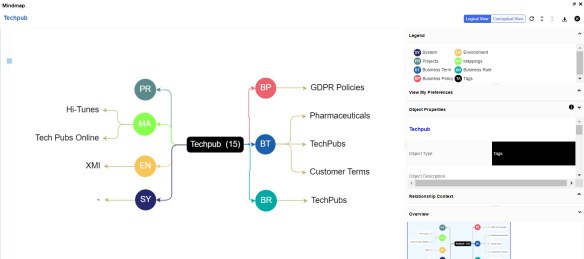
The mind map shows:
- Which assets are tagged with the selected tag
- Related tags in the same group
- Tag usage patterns across the system
You can use the following options to work on the mind map:
- Reload Diagram (
 ) : Reloads the mind map.
 - Expand Diagram (
 ) : Expands the mind map to view the associated assets.
 - Reset Diagram to Original View (
 ) : Collapses the expanded nodes and restores the mind map to its original form.
 - Export (
 ) : Exports the mind map. Hover over Export and use the following options:
- Mind Map - Excel Report: Downloads the mind map in the XLSX format. Ensure that you expand the mind map before downloading the report.
- Mind Map - Image: Downloads the mind map as an image, in JPG format. Ensure that you expand the mind map before downloading the mind map image.
- Sensitivity Details - Excel Report: Downloads the sensitivity report of all associated assets in the XLSX format. This report includes sensitive data indicator (SDI), SDI classification, and SDI description of the associated assets.
For more information on mind maps, refer to the Viewing Mind Maps topic.
- Edit (
 )
) - Use this option to enrich an existing enterprise tag by updating it through the Edit Tag screen.
- Delete (
 )
) - Use this option to delete an enterprise tag that is no longer required.
- View History (
 )
) - Use this option to view the action log and review all changes made to the tag since its creation.